
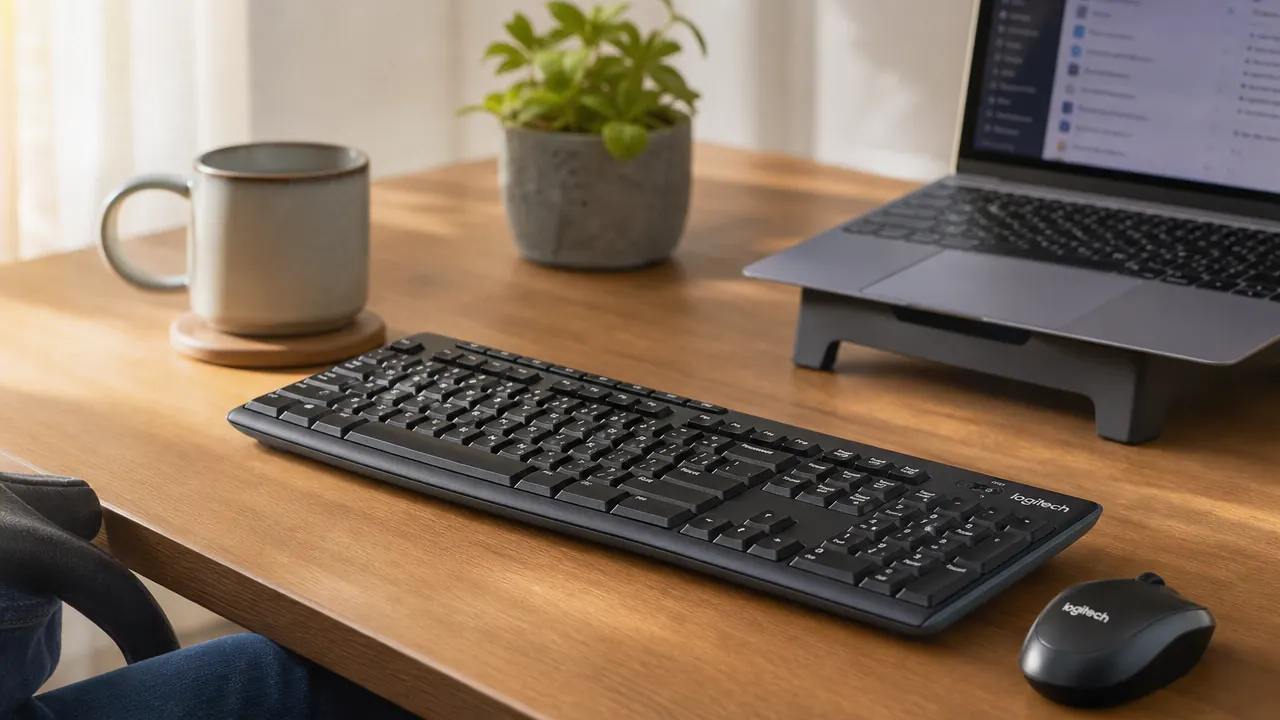
My old wired keyboard had a USB cable that reached exactly far enough to be in the way. Every time I shifted my laptop to one side, it yanked the keyboard with it. The mouse cord caught under the wrist rest on every fast scroll. I tried a different wired setup, then a cheap no-name wireless combo that lost connection three times a day. By the time I picked up the Logitech MK270 about two years ago, I was mostly just hoping it would stay connected. It did. It has. I have typed on this keyboard for two full years of daily remote work, roughly five to seven hours a day, five days a week. This review is everything I noticed along the way, including the stuff nobody mentions in a quick unboxing video.
The MK270 is not a premium keyboard. It costs less than a decent lunch. But for a home office worker who needs something reliable, comfortable, and wire-free, it holds up in ways that more expensive options sometimes do not. Here is my honest, long-form take after two years.
The Quick Verdict
The most reliable wireless combo at this price. Key feel is comfortable for long typing sessions, the nano receiver never needs attention, and the batteries genuinely last as long as Logitech claims. Not for gamers or power typists who want tactile feedback, but for daily office work it is hard to beat.
Amazon Check Today's Price →Still untangling keyboard cables? The MK270 fixes that for under $30.
Two years of cable-free daily use. One nano receiver, no driver setup, Windows-ready out of the box.
Amazon Check Today's Price on Amazon →How I've Used It
My setup is a 13-inch Windows laptop pushed to the left side of my desk, connected to a 27-inch external monitor through a docking station. The MK270 sits centered in front of the monitor. I write, edit, handle email, and do a fair amount of spreadsheet work. I am not a programmer and I do not game. My typing speed sits around 75 words per minute on a good day. That context matters because the MK270 is clearly built for exactly this kind of user, not for someone who needs low-actuation mechanical switches or gaming-grade 1ms polling rates.
Setup took about four minutes. I plugged the nano receiver into my laptop's USB-A port, inserted the included batteries, turned the keyboard and mouse on with their side switches, and everything worked immediately. No drivers, no software, no Logitech Options app required unless you want to remap keys. I have not unplugged or re-paused the receiver since day one. It lives in the port. That is the whole setup story.
The receiver itself is tiny, about the size of a small fingernail. If you travel with your laptop, you can leave it plugged in and it will not stick out far enough to break. That is a genuine practical advantage over bulkier older wireless receivers.
Two Years of Key Feel: Comfortable But Not Fancy
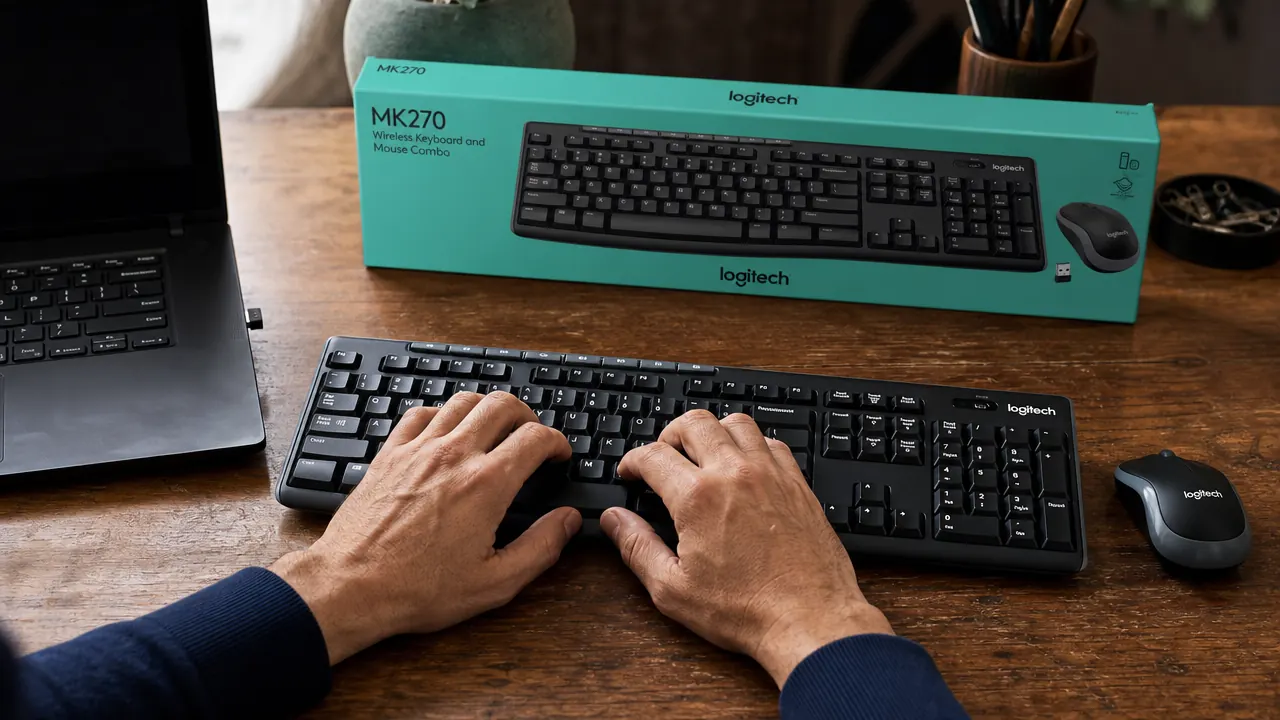
The MK270 uses Logitech's standard membrane keys. They are quiet, with a soft actuation and about 2mm of travel. If you are coming from a mechanical keyboard, they will feel mushy at first. If you are coming from a laptop keyboard or a cheap membrane board, they will feel about the same or slightly better, with a bit more surface area under each key.
After two years, every single key still registers cleanly. I noticed zero key chatter, where a single press registers twice, which is a real failure mode on cheap keyboards after about 12 to 18 months of heavy use. The space bar has a slight rattle that was there from day one, but it is consistent and I stopped noticing it within the first week.
The layout is standard full-size with a number pad on the right. If you work with numbers frequently, that pad earns its space. The function row doubles as media keys: volume, play/pause, and a mute key that I use constantly on calls. You press F-Lock once to toggle between function-key mode and media-key mode. I keep it in media-key mode permanently.
I have typed on this keyboard for two full years of daily remote work and not one key has missed a beat. For what it costs, that reliability record surprised me.

The Mouse: Small, Accurate Enough, Fine
The MK270 mouse is compact and right-handed. It has a scroll wheel, left and right click, and a back button on the left side. That is it. There are no adjustable DPI settings, no extra buttons on the right, and no fancy sensor. The optical sensor tracks well on a desk mat and adequately on a bare wood desk. I never noticed any jitter or missed clicks during normal office use.
My one real complaint is the size. The mouse is small enough that after a long day my palm does not rest on it fully. I have medium-sized hands and it works, but if you have large hands you will feel the shortfall. For short sessions it is fine. For eight-hour work days, I recommend pairing it with a cheap gel wrist rest to reduce strain. This is not a deal-breaker, it is just a reality of a compact mouse at this price point.
The scroll wheel is rubberized and responsive. After two years it still has the same resistance it had on day one, no loosening or sticky patches. The left and right click buttons have a satisfying, quiet click that is softer than the MK295 Silent combo. If you are in a shared space or on video calls, the click sound is noticeable but not disruptive. For true silence, see our Logitech MK270 vs MK295 comparison to weigh the tradeoffs.
Battery Life: The Honest Numbers
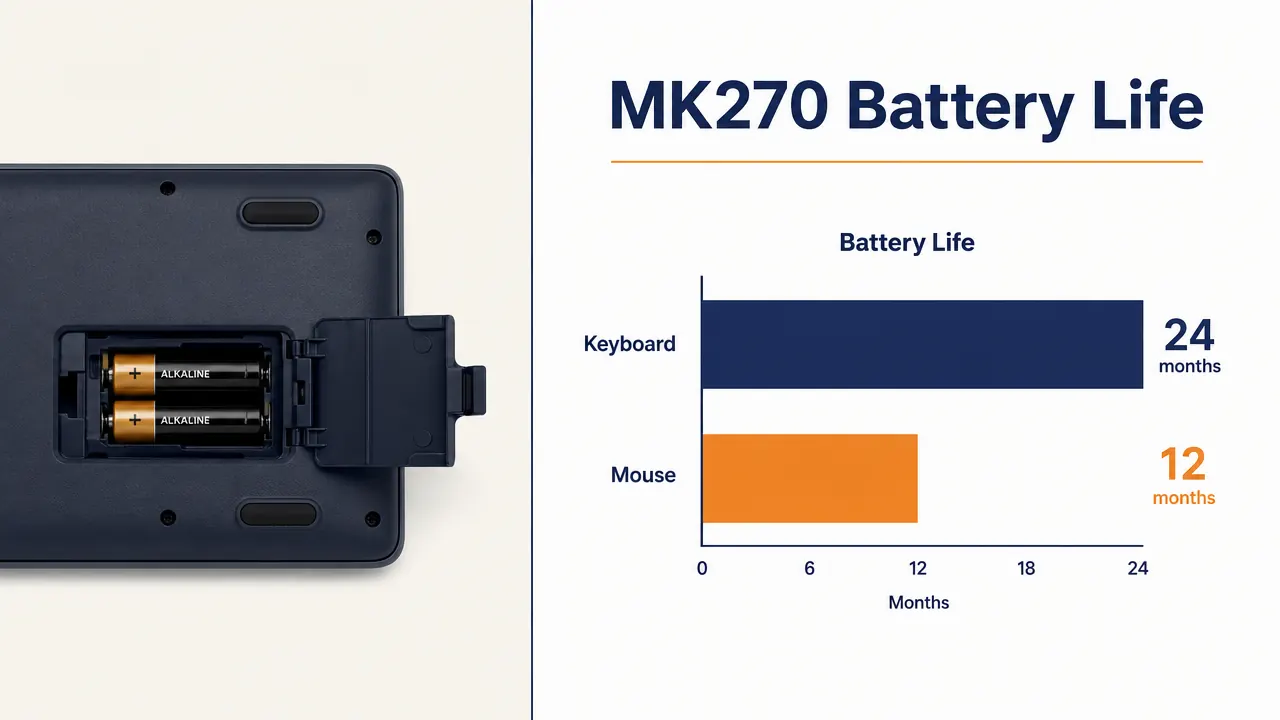
Logitech claims up to 24 months on the keyboard and 12 months on the mouse. I changed the keyboard batteries once in two years, at around the 22-month mark. I have changed the mouse batteries three times, which tracks to roughly 8-month intervals. That is slightly shorter than the spec but still exceptional compared to rechargeable wireless mice that demand a cable every week or two.
The keyboard has a power-saving sleep mode that kicks in after a few minutes of inactivity. First keypress wakes it in under a second, which I have never found disruptive. The mouse does not have a visible battery indicator, which is the one thing I would genuinely change. My only warning about a dying mouse battery has been when the cursor starts skipping, which gives you maybe a day before it dies entirely. Keep a set of AA batteries in your desk drawer and you will not be caught out.
Connection Reliability: Two Years, Zero Dropouts
The 2.4 GHz connection has been flawless. I work in a two-bedroom apartment with a router about 20 feet away, two other laptops on WiFi, a smart TV, and the usual Bluetooth noise from phones and earbuds. I have never had a dropout, a lag spike, or a missed keypress. I tested range once by taking the keyboard to the kitchen, about 30 feet from the receiver, and it still worked without issue.
The MK270 uses Logitech's Unifying receiver technology on some versions, but this newer ASIN uses a standard dedicated nano receiver. One device, one receiver. If you want to pair multiple Logitech devices to a single receiver to save ports, you will want to look at the Unifying-compatible versions instead. For most home office users, one receiver per device is not a problem.
A cleaner desk also helps with connection quality since fewer physical obstructions between receiver and device reduces the chance of occasional interference. If you are working on a full desk declutter, the guide on how to declutter your home office desk with a wireless setup walks through the full process, cables and all.
Durability After Two Years
The keycaps show minimal wear. The legends, the letters and symbols printed on each key, are still fully readable with no fading or rubbing. I have read complaints about Logitech keycap legends fading on older models, but on this version I have had no issues. The keyboard body has a matte black plastic finish that picks up fingerprints but wipes clean easily. The mouse has one small scuff on the left side from being knocked off my desk once. Functionally it made no difference.
I did spill about three ounces of coffee on the keyboard about six months in. I turned it upside down, let it drain and dry for 24 hours, and it came back fully functional. This was not a massive spill, and I would not call the MK270 spill-proof. But it survived. I mention it because it happened and it is relevant to long-term durability in a real home office where drinks exist.
What I Liked
- Connection has never dropped in two years of daily use
- Keyboard battery lasted 22 months before needing a change
- Full-size layout with number pad and dedicated media keys
- Nano receiver is tiny enough to leave plugged in permanently
- Zero key chatter or missed registrations in two years
- Quiet keys work well on calls without being distractingly loud
- Survived a minor coffee spill
Where It Falls Short
- Mouse is compact and may feel small for large hands after long sessions
- No battery indicator on the mouse
- Membrane keys lack tactile feedback for mechanical keyboard fans
- Mouse does not have adjustable DPI
- Keycap legends are not backlit, poor for dim environments

Who This Is For
The MK270 is the right choice if you work from home on Windows, you type emails and documents and spreadsheets all day, and you want to stop thinking about your keyboard and mouse entirely. It is for the person who does not want to manage Bluetooth pairing, who does not need five programmable side buttons, and who considers changing batteries every eight months a completely reasonable trade for having zero cables on their desk. If that describes you, this combo does everything it needs to do and does it reliably for years.
Who Should Skip It
Skip the MK270 if you want tactile mechanical key feel, if you have large hands and need a full-size ergonomic mouse, or if you use a Mac as your primary machine. The MK270 is Windows-optimized and while it works on macOS, several media keys do not map correctly without remapping software. Heavy gamers will also want something with a higher polling rate and adjustable DPI. And if you share a quiet office with others and need near-silent clicks, the MK295 Silent combo is worth the small premium, as I cover in detail in the Logitech MK270 vs MK295 comparison.
Two years of daily use, still going strong. At this price it is one of the easiest home office upgrades you can make.
The MK270 ships with batteries included and is plug-and-play on Windows. No drivers, no app, just a clean cable-free desk.
Amazon Check Today's Price on Amazon →